Upgrade ProRoast and restore your roast profiles
Guild Roasters | ProRoast 2.4.15 | Android tablets
ProRoast 2.4.15 supports most Android 11 and newer tablets and includes the profile date, viewing and saving fixes. This guide covers updating your existing tablet or installing ProRoast on a replacement tablet.
Back up first. Keep your existing app installed and do not clear its data. Import each backup once only. If your profiles are already present after an update, do not import the same backup again.
1. Export from your old ProRoast app
Open the old app. Open More options and select Export Database. Choose a location you can find again, such as Downloads, and save the exported .sqlite file. Keep its filename and export date so you can identify the correct backup. Older versions and tablets may show a different export screen; if you cannot find or complete the export, stop and ask Guild through your Odoo ticket before updating.
The export is for roast profiles. Do not assume it backs up all settings, calibration or other app information.
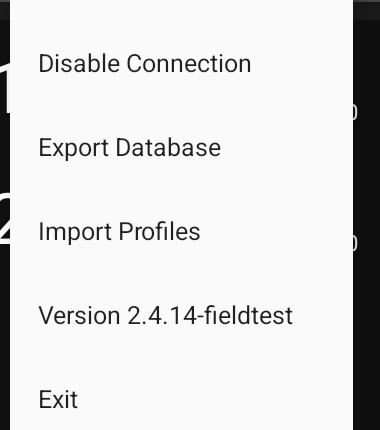
Export Database in More options
Reference screenshot from the isolated tablet test build. Its menu version label is not the customer download version; use the Guild download below.

Android save picker with exported database filename and SAVE
2. Put the backup in your own cloud storage
Find the exported file in your tablet's file manager. Use its sharing action and choose your own cloud storage account. Google Drive is one example; use the provider you normally trust and can access on the destination tablet.
Wait until the upload has finished. On the tablet you will use after the upgrade, download that backup into a location you can find again. Check that the filename is correct and the file is not empty. Keep the original exported file as well as the cloud copy. If the backup cannot be downloaded, do not proceed with the upgrade.
Do not send Guild your cloud password or grant someone access to your cloud account. Keep support questions and error screenshots in your Odoo ticket.
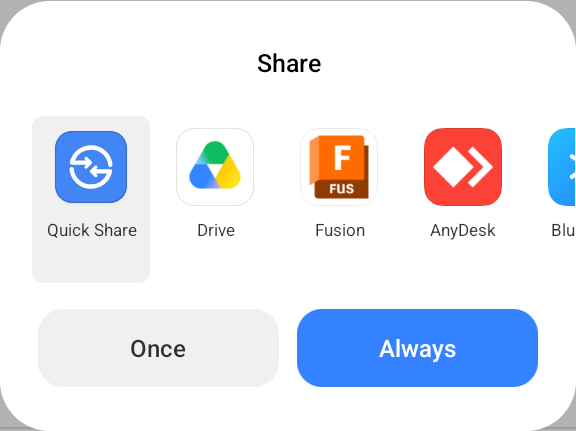
Example Android share chooser including Drive
This screenshot shows the available sharing choices. It is not an upload-completion screen. Choose your own account and verify completion in your provider's app.
3. Download and install the Guild APK
File: ProRoast-2.4.15-update.apk - 9,159,571 bytes. Download this customer APK, not a Field Test APK.
Open the downloaded APK on your tablet and follow Android's installation/update prompts. For an existing ProRoast installation, keep the app installed so Android can update it in place. For a replacement tablet, install ProRoast first, then import your downloaded backup once.
If Android asks you to uninstall the old app, reports a conflict, blocks installation or shows a prompt you are unsure about, stop and attach a screenshot to your Odoo ticket. Do not clear app data or disable Play Protect to get past an error.
After installation, open ProRoast and check the version in More options. It should show 2.4.15. Tablet-specific browser/source permission instructions are not included here; use support if your Android prompt requires help.
Optional file verification (SHA-256):
97d34b4ddf7c91943cd50d26e517901de1a6a57284a8700b7a32fc5d5c3107bd
4. Check before importing
Open LOAD PROFILE and look for your existing profiles. If they carried over after the update and are visible, do not import the backup again.
If this is a new tablet or the profiles are genuinely absent, continue below. If only some profiles are missing, or a visible profile will not open, ask Guild in the same Odoo ticket before importing repeatedly.
5. Import the backup once
Open More options, select Import Profiles, and select the backup you downloaded from your own cloud storage. Check the filename before selecting it. Keep the app open while Importing... / Please wait! is displayed. A large backup may take several minutes.
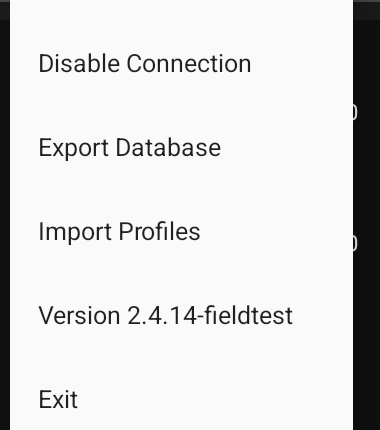
Import Profiles menu
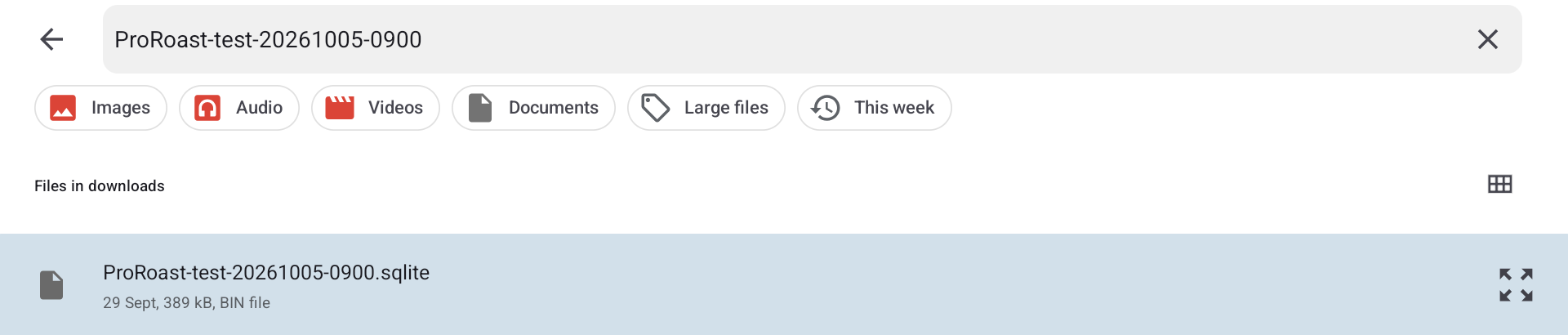
Android document picker selecting a SQLite backup
The example file is a local test fixture. Select your own downloaded backup.
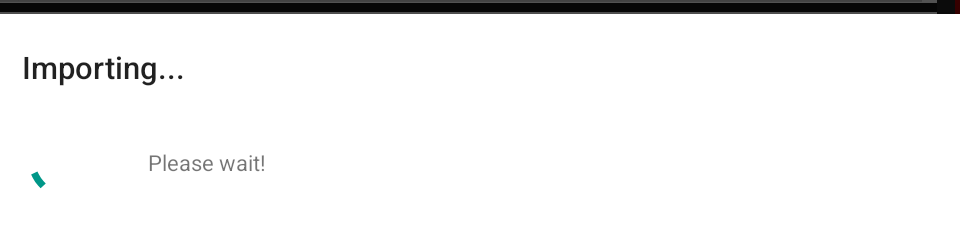
Import progress
Import once only. Duplicate prevention is best effort. Repeating the same backup can still add duplicate profiles, including older records whose origin information is missing. Profiles with edited or incomplete information can also be added again. Separately recorded profiles with completely identical compared content may be treated as already present. Do not rely on repeated importing to fix missing data, and do not delete existing profiles to make an import work.
If the import fails, preserve the original backup and existing app data. Note the result message and send an error screenshot through your Odoo ticket. Ask Guild before retrying the same file.
6. Check your restored profiles
Open LOAD PROFILE. Check representative profiles against the old tablet or your records: roast date, origin, weights, notes and graphs. Open the profile details and use LOAD to view its recorded curves. These are saved profile values, not a live roast.
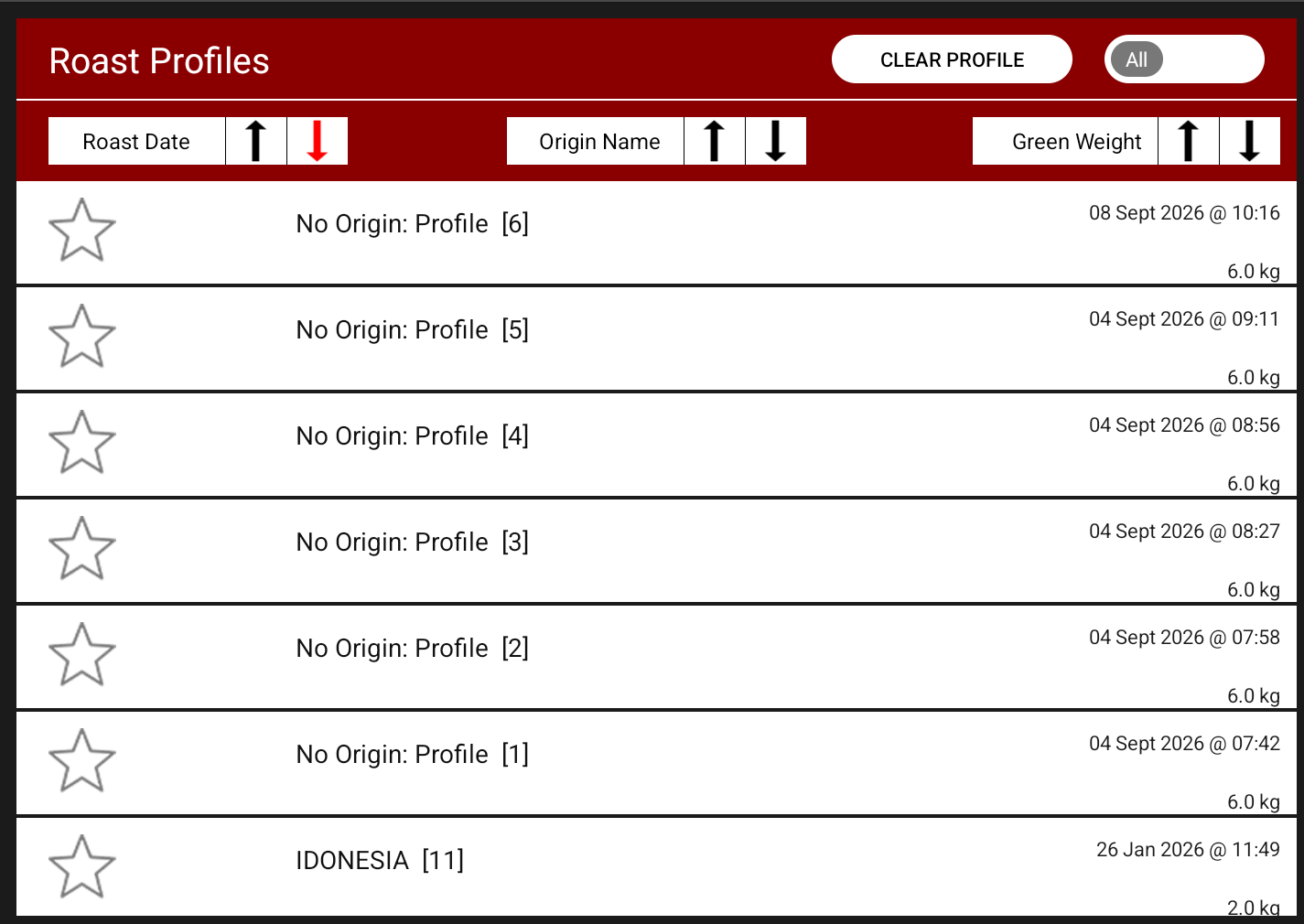
Example restored profile list
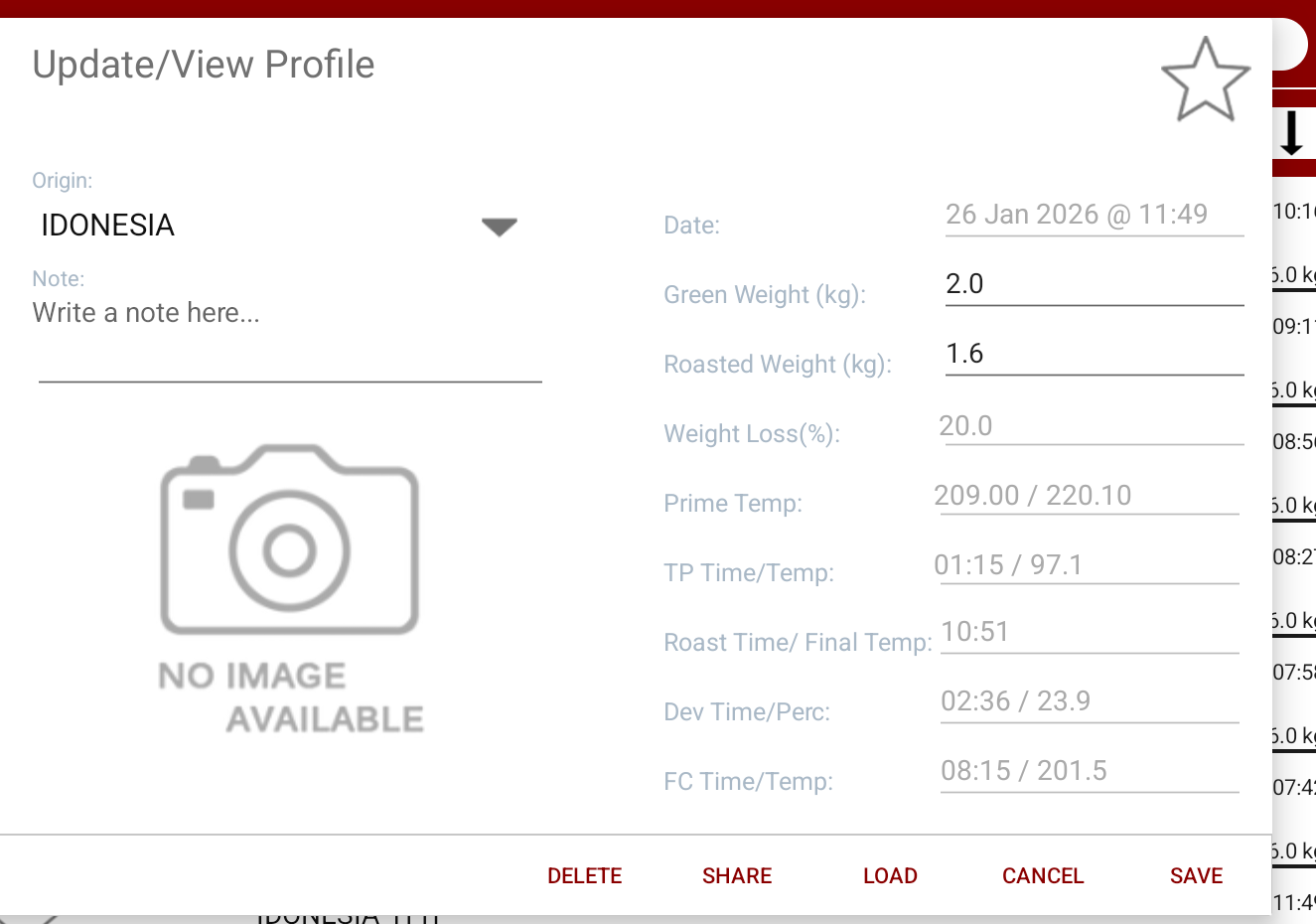
Update/View Profile details
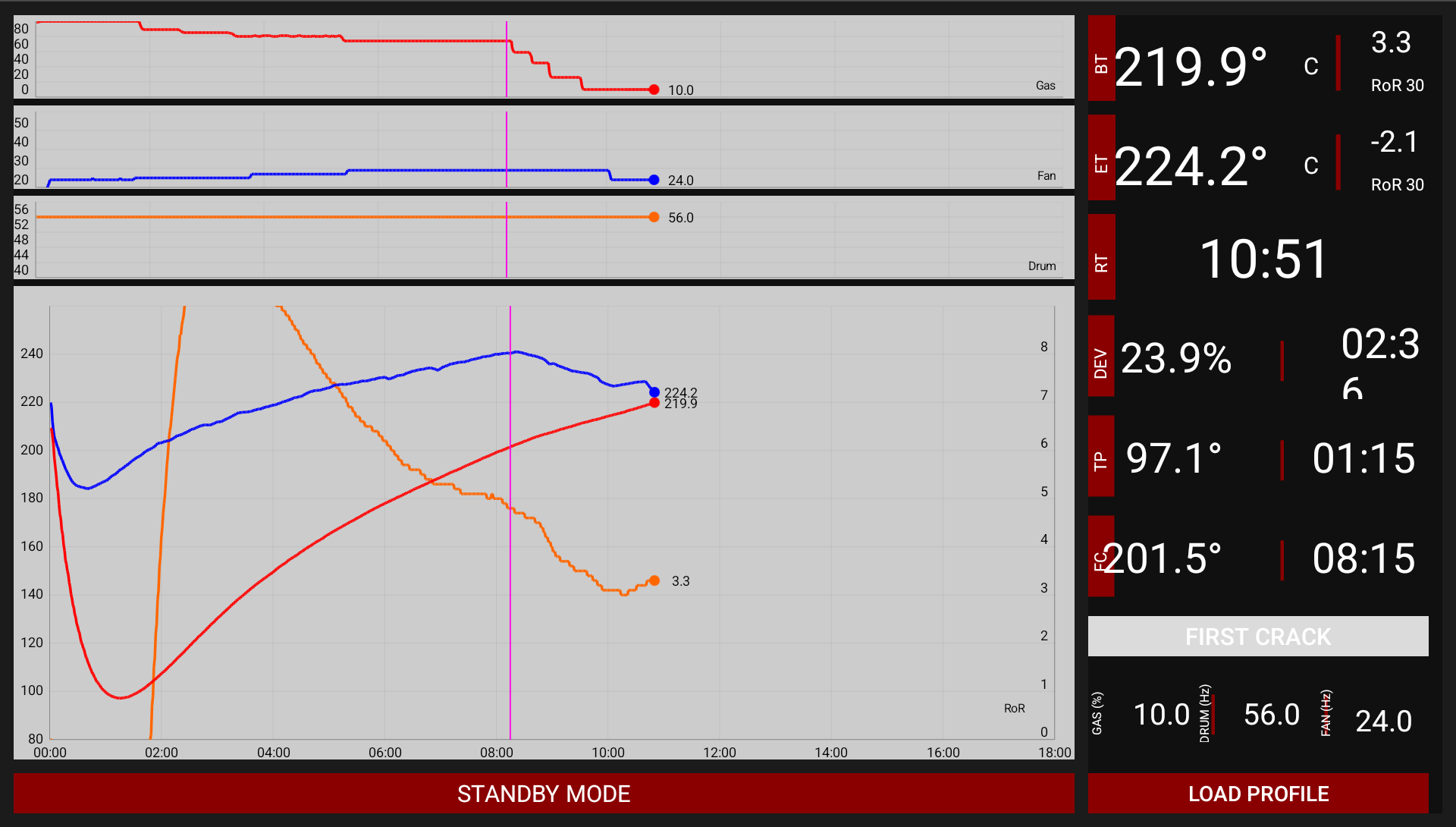
Recorded profile graph
For a save check, use a representative restored profile and tap SAVE without changing its fields. Close and reopen ProRoast, then check that the same profile is still available. Do not start a roast just to complete this upgrade check. If an expected profile or its data is missing, stop and ask Guild before importing again or deleting anything.
Reply in your Odoo ticket with the tablet model, Android version, ProRoast version and confirmation that the expected profiles can be opened and remain available after restarting. Keep the backup after the ticket is completed.
Get help from Guild Roasters
Use the Guild Customer Portal to create or reply to your helpdesk ticket. Keep the upgrade discussion, screenshots, assistance arrangements and success confirmation in that ticket. This guide is intended to remain publicly accessible even when you are signed out of the portal.
Optional live online upgrade assistance costs USD 120 per hour, excluding tax, with no minimum booking fee. You need to speak English, perform basic Android tasks, have a strong internet connection and be able to join Google Meet. Assistance can be scheduled. Guild will confirm availability, the estimate and billing/booking details before the session is arranged.